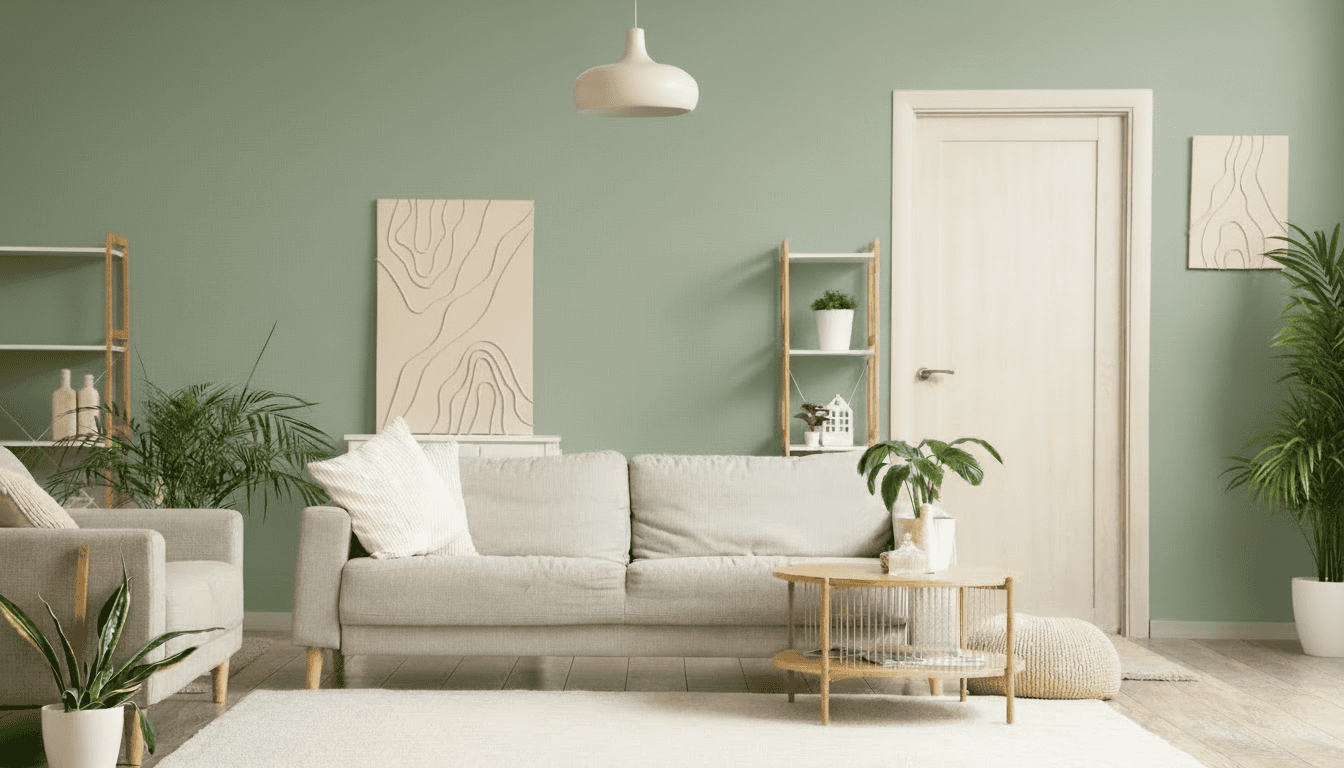
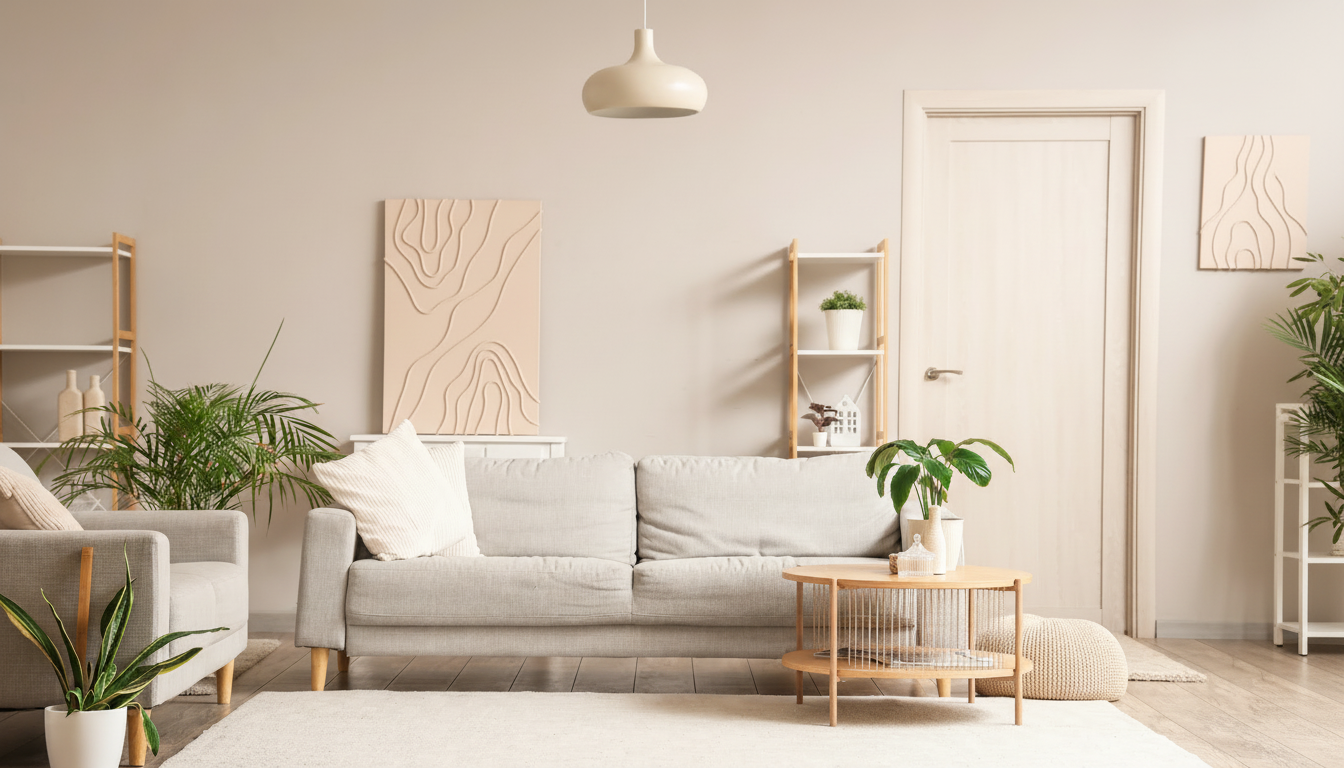

 Free AI paint visualizer
HueIQ is a free paint visualizer from That 1 Painter. Upload a photo of any room or the outside of your house and see real paint colors on your own walls, trim, cabinets and siding before you buy a single gallon.
Instead of guessing from a two-inch paint chip, you can see how a color looks in your space, next to your floors, furniture and roof. Compare as many options as you like, then bring your favorite to life with a free estimate from your local painting team.
Take a straight-on photo of a room or the front of your house, or pick one of our sample rooms.
HueIQ's AI maps the walls, trim, ceilings, cabinets and siding in your photo. Tap the one you want to paint.
Search by color name or code, like Agreeable Gray or SW 7029, or browse by color family or paint brand.
Try as many colors as you like, save up to five favorites, and download a high resolution image of the look you love.
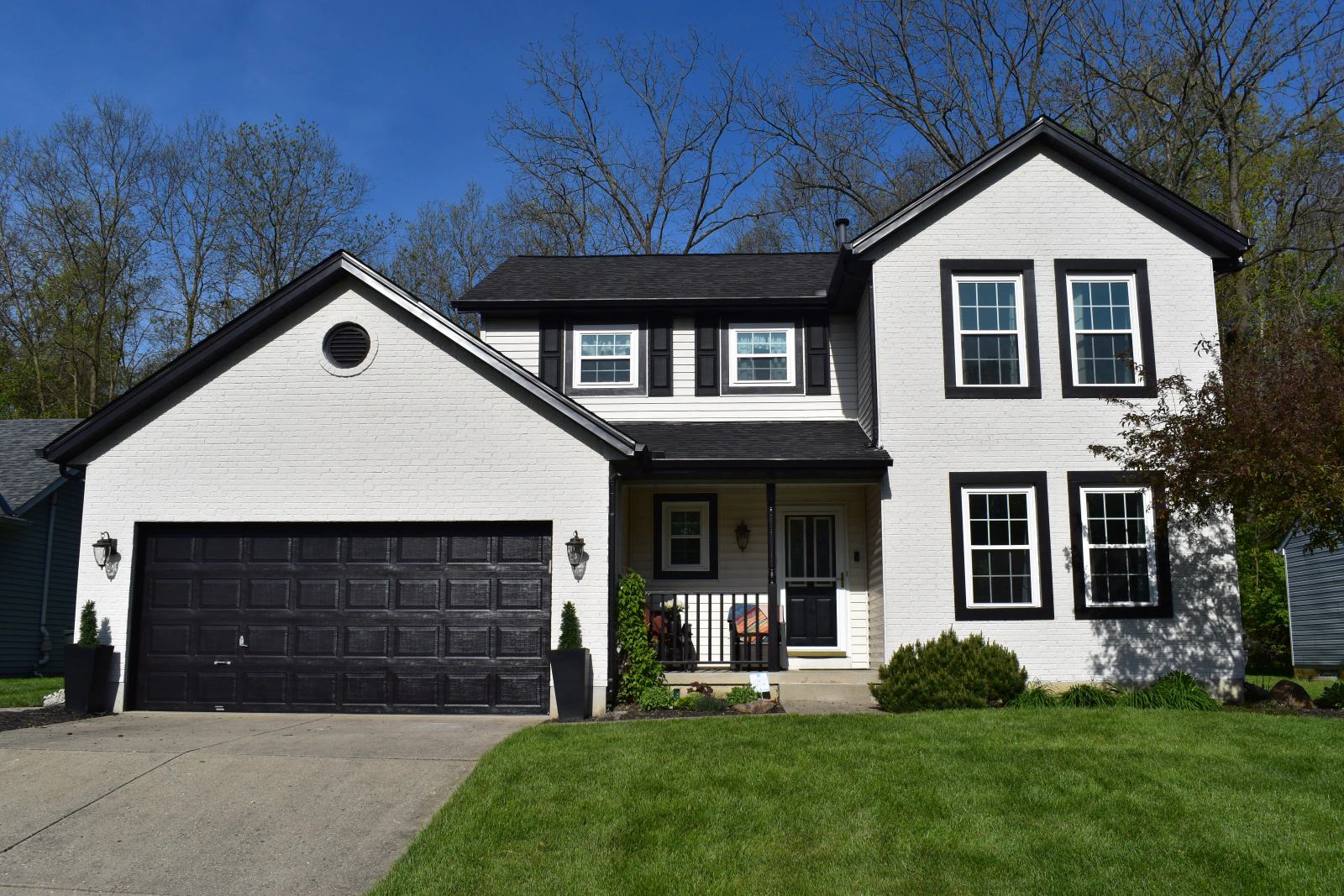
Choosing an exterior color is a big decision because the whole street sees it. Snap a photo of the front of your house and try new colors on the siding, front door and shutters one at a time until the combination feels right.
HueIQ keeps the shadows and texture of your original photo, so lap siding, stucco and brick still look like themselves in the new color.
See how a new wall color changes your living room, bedroom, bathroom or kitchen. Upload a photo of the room and paint the walls, ceiling, trim and cabinets separately to find a combination that works together.
Planning a kitchen update? Try cabinet colors against your countertops and backsplash before you commit to a full cabinet painting project.
Sherwin-Williams
Warm greige with soft gold undertones, popular in open living areas.
Try this color →Sherwin-Williams
Balanced neutral that reads calm in both bright and shaded rooms.
Try this color →Sherwin-Williams
Soft off-white with a subtle warm cast, favored for trim and full-room refreshes.
Try this color →Sherwin-Williams
Muted sage green that leans earthy without turning too gray.
Try this color →Sherwin-Williams
Deep charcoal brown with olive undertones, common on modern exteriors and accent walls.
Try this color →Sherwin-Williams
Pale coastal blue-green, quiet and airy in bathrooms and bedrooms.
Try this color →Sherwin-Williams
Cool light gray with a hint of warmth, works in transitional interiors.
Try this color →Sherwin-Williams
Rich saturated navy, often used on cabinets, doors, and library walls.
Try this color →Benjamin Moore
Warm gray with taupe undertones, a long-running favorite for main living spaces.
Try this color →Benjamin Moore
Creamy warm white that stays soft against natural light.
Try this color →Benjamin Moore
Off-white with a gentle yellow warmth, easy on adjacent wood tones.
Try this color →Benjamin Moore
Classic deep navy with a slate cast, at home on shutters, doors, and cabinets.
Try this color →HueIQ brings more than 12,000 Sherwin-Williams, Benjamin Moore, Behr and PPG colors into one visualizer, so you can compare across brands without switching tools. Every color shows its name and code, so you know exactly what to ask for at the store.
4,600+
Behr colors
3,900+
Benjamin Moore colors
2,000+
PPG colors
1,500+
Sherwin-Williams colors
Floors, countertops, roofing, brick and stone are not changing, so choose paint colors that sit well next to them.
Two grays can look identical on a chip and very different on a wall. Compare colors side by side to see which lean warm and which lean cool.
North-facing rooms read cooler and south-facing rooms read warmer. Preview colors on a photo taken in the light you live with.
Page through a color family in HueIQ to see the same hue at different depths before you settle on one.
Once you narrow it down, paint a sample board and look at it in the morning and evening before buying gallons.
Answers about trying paint colors on your own photos with HueIQ.